With the iOS 17 update, you can now create and customize your contact poster. With this, you can personalize your appearance on other iPhones when you are in contact with them. If you don’t have iOS 17 or the latest version, you can get them by updating your device to the latest iOS version. In this article, we are going to tell you how you can create a contact poster and customize it as you wish.
Create a Contact Poster
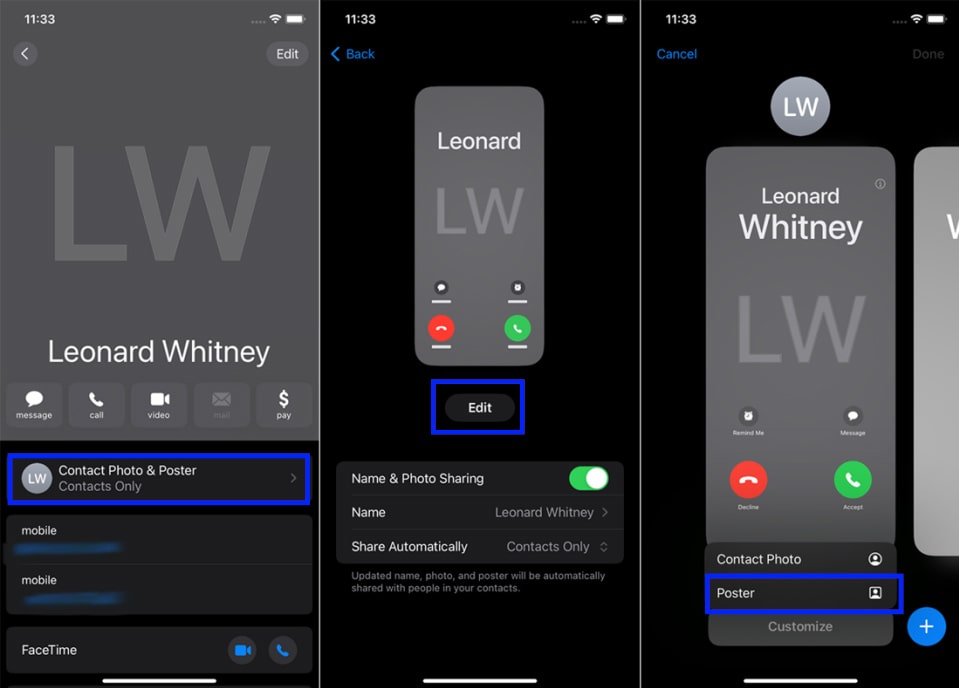
To this first, open your contact card on your device. Then navigate to the Contact Photo & Poster and tap on it. Then select Edit and then tap on Customize. You have to choose the Poster option in order to do this. It will appear on a screen that allows you to create a new poster from the picture you want. You can also capture your selfie with the camera icon and tap on the Use Photo option. If you don’t want to do that, you can create this with already existing photos in your gallery.
If you don’t want to show your photo to others, you can use a Memoji instead of a photo. You have to tap on Memoji and create a new avatar or use an old one. Then, choose the position you like. Even if you don’t like this, you can use Monogram. Simply select the Monogram option. By default, they already make a monogram with your first and last name initials. You can change them as you wish.
You can edit your image and change the font colors for your name, after doing all the things. A preview poster will appear on your screen. You can check it and apply other edits if you want. After doing that, make a call or text your desired person, and your poster will appear on their screen. After creating your first poster, you can also create another one using the same steps.
Customize the Content Poster
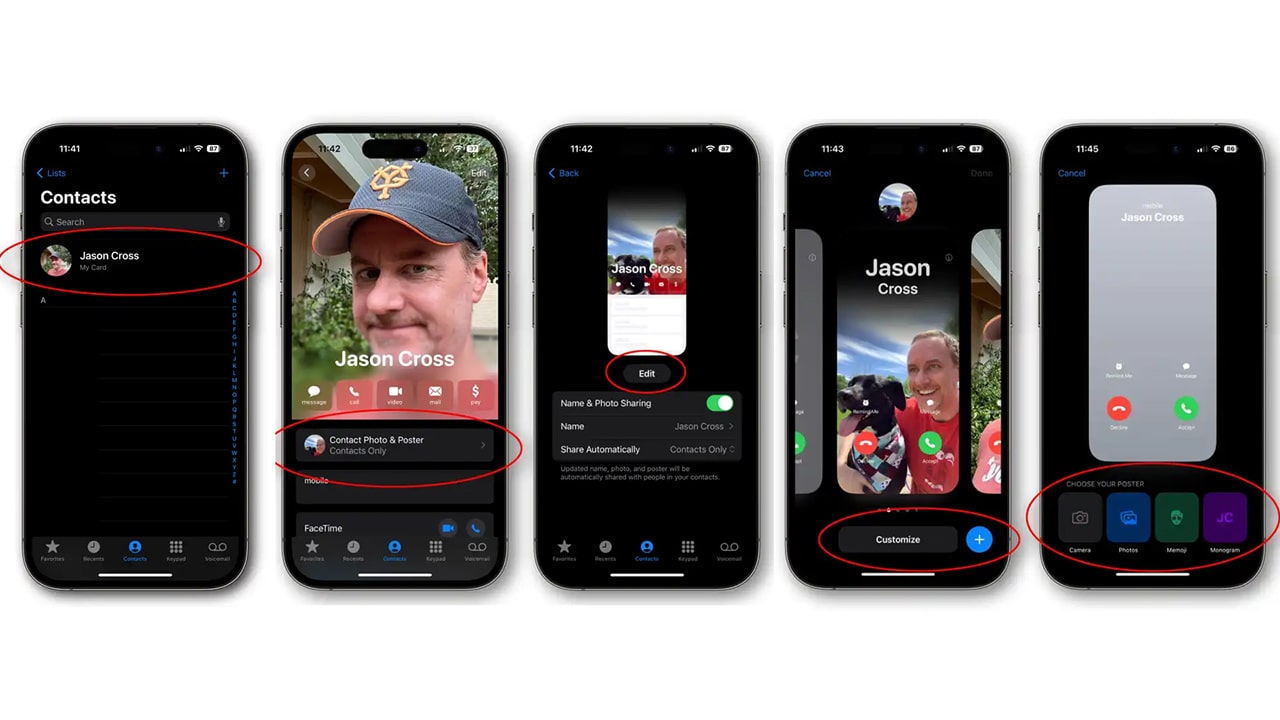
If you want to edit your poster after making that you can simply do that. Go to the Contact card and select the Contact Photo & Poster. Then tap on the Edit tab and choose the card you want to edit. Then choose the Customize. Tap on Poster. Then you can add changes to the Poster. After you cone with the changes you can see the different views of your new card. Simply tap back tab to go again to the contact card.
These simple steps help you to do the above operations very easily.